What is a File System?
What Are File Systems? Organizing Your Digital World
When you save a file on your computer, phone, or USB drive, have you ever wondered how your device knows where to store it and how to retrieve it later? This is where file systems come in. A file system is like a librarian for your digital data—it organizes, stores, and retrieves files so you can access them easily. Let’s explore what file systems are, how they work, and why they’re important.
1. What is a File System?
A file system is a method used by your operating system (like Windows, macOS, or Linux) to manage files and folders on a storage device (like a hard drive, SSD, or USB drive). It determines how data is stored, organized, and retrieved. Without a file system, your device wouldn’t know where to save files or how to find them later.
Think of a file system as a filing cabinet. The cabinet has drawers (folders) and files inside them. The file system ensures that every file has a specific place and can be found quickly when needed.
2. Why Are File Systems Important?
File systems are essential because they:
- Organize Data: They keep files and folders structured so you can find them easily.
- Manage Space: They track which parts of the storage are used and which are free.
- Ensure Reliability: They protect data from corruption and ensure files are stored safely.
- Control Access: They manage who can read, write, or modify files.
Imagine a library without a catalog system. Books would be scattered everywhere, and finding a specific book would be a nightmare. A file system is like the catalog system that keeps everything in order.
3. Common File Systems
There are many file systems, each designed for specific purposes. Let’s look at some of the most common ones:
FAT32 (File Allocation Table 32)
- What It Is: One of the oldest and most widely supported file systems.
- Pros: Works on almost all devices (Windows, macOS, Linux, gaming consoles, cameras).
- Cons: Limited file size (max 4GB per file) and partition size (max 8TB).
- Use Case: Great for USB drives and SD cards because of its compatibility.
Think of FAT32 as a universal adapter. It works everywhere but has some limitations, like not being able to handle very large files.
exFAT (Extended File Allocation Table)
- What It Is: An improved version of FAT32.
- Pros: Supports larger files (theoretical limit of 16 exabytes) and is compatible with most devices.
- Cons: Not as widely supported as FAT32 on older devices.
- Use Case: Ideal for external drives and flash drives where you need to store large files.
exFAT is like a modern universal adapter—it works on most devices and can handle bigger tasks.
NTFS (New Technology File System)
- What It Is: The default file system for Windows.
- Pros: Supports large files and partitions, has advanced features like file permissions and encryption.
- Cons: Limited compatibility with non-Windows devices (e.g., macOS can read NTFS but not write to it by default).
- Use Case: Best for internal hard drives and SSDs on Windows computers.
NTFS is like a high-security office building. It’s powerful and secure but not as accessible to outsiders.
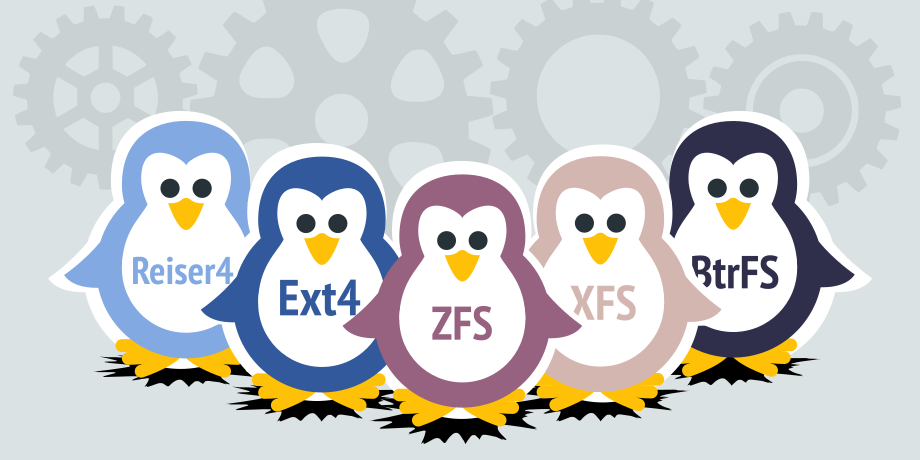
ext4 (Fourth Extended File System)
- What It Is: The default file system for most Linux distributions.
- Pros: Supports large files and partitions, is reliable, and has journaling (which prevents data loss during crashes).
- Cons: Not natively supported by Windows or macOS.
- Use Case: Ideal for Linux systems and servers.
ext4 is like a well-organized library—it’s efficient and reliable but requires specific knowledge to use.
APFS (Apple File System)
- What It Is: The default file system for macOS and iOS devices.
- Pros: Optimized for SSDs, supports encryption, and is highly efficient.
- Cons: Only works on Apple devices.
- Use Case: Best for Macs, iPhones, and iPads.
APFS is like a luxury car—it’s fast, sleek, and designed specifically for Apple’s ecosystem.
4. How Do File Systems Work?
Organizing Files
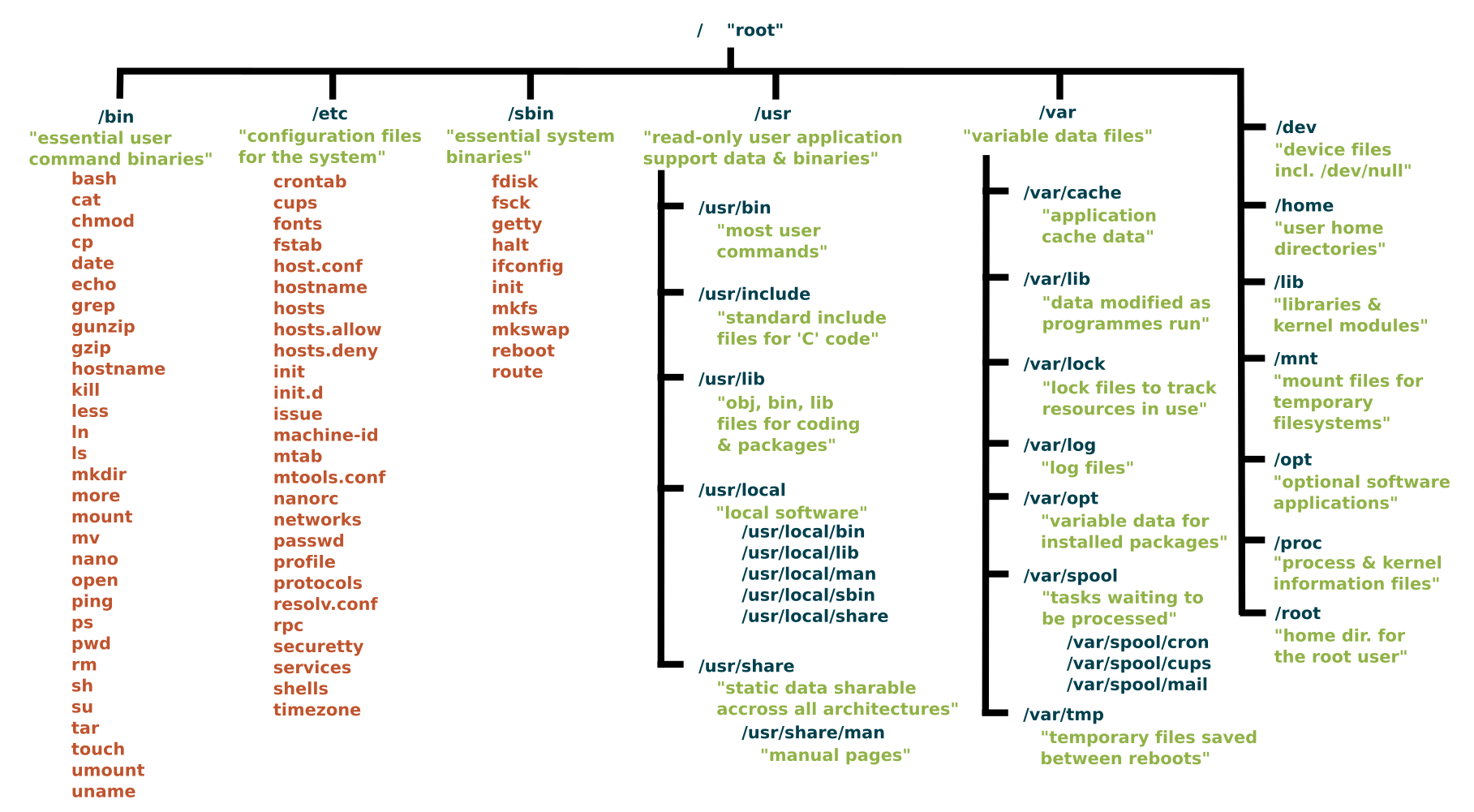
File systems use a hierarchical structure of folders (directories) and files. This structure makes it easy to navigate and find data. For example, you might have a folder called “Photos” with subfolders for each year.
Tracking Storage
File systems keep track of which parts of the storage are used and which are free. They use a table (like FAT or inode tables in ext4) to record this information.
Journaling
Some file systems, like NTFS and ext4, use journaling to prevent data loss. Journaling records changes before they’re made, so if the system crashes, it can recover the data.
Think of journaling as a to-do list. If you forget what you were doing, you can check the list to pick up where you left off.
5. Choosing the Right File System
For USB Drives and SD Cards
- Use FAT32 for maximum compatibility with older devices.
- Use exFAT if you need to store large files and work with modern devices.
For Windows Computers
- Use NTFS for internal drives because of its advanced features and reliability.
For Linux Computers
- Use ext4 for internal drives because of its efficiency and journaling.
For Mac Computers
- Use APFS for internal drives because it’s optimized for Apple hardware.
6. Limitations of File Systems
File Size and Partition Limits
- FAT32 has a 4GB file size limit, which can be a problem for large videos or disk images.
- NTFS and ext4 support much larger files and partitions, making them better for modern needs.
Compatibility
- NTFS and ext4 are not fully compatible with all devices. For example, macOS can read NTFS but not write to it without additional software.
Performance
- Some file systems, like APFS, are optimized for SSDs and perform better on modern hardware.
7. Conclusion: The Invisible Organizer
File systems are the invisible organizers of your digital world. They ensure your files are stored safely, retrieved quickly, and managed efficiently. Whether you’re using FAT32 for a USB drive, NTFS for a Windows PC, or ext4 for a Linux server, the right file system makes all the difference.
Next time you save a file or plug in a USB drive, remember the file system working behind the scenes to keep your data organized and accessible. It’s the unsung hero of your digital life!